

What account linking is and when to use it.
Who this is for
This tutorial is for anyone who wants to know more about account linking.
What is account linking?
- Account linking is a feature that allows an account to be linked to another account. This is useful for parents who want to link their child's account to their own account.
- Account linking is
not necessaryto use the software properly. - Account linking between family members is not set up automatically. You need to start the linking request and get approval from the account owner.
- The association can limit how many approved accounts may link to the same account. If that limit has been reached, contact your association for help.
Associations have tools to check and adjust account linking. Please contact your association if you need help.
Where to check and manage account linking
- You can check and manage account linking on the account linking page.
- You can request a new account link by clicking the "+ Link another account" button on the account linking page.
- You can unlink an account by clicking the "Remove link" button on the account linking page.
Please note that an account linking request has to be approved by the account owner before the linking is successful.
Please note that your children's accounts are NOT linked to your account by default or automatically. You need to start the linking request and wait for approval.
What is account linking for?
- You can see the linked account in the mobile app.
- You can switch to an approved linked account in the mobile app to use the supported account features. Linking does not grant that account's administration permissions.
- You can make registrations for a linked account.
- You can receive notifications for the linked account when "Receive notifications for this account" is enabled and the notification is eligible for delivery.
How to view and switch to a linked account in the mobile app
In the mobile app, open the Accounts tab to see your account and approved linked accounts. Tap an account row to select it.
This screenshot shows the earlier app layout; the current app uses the Accounts tab:
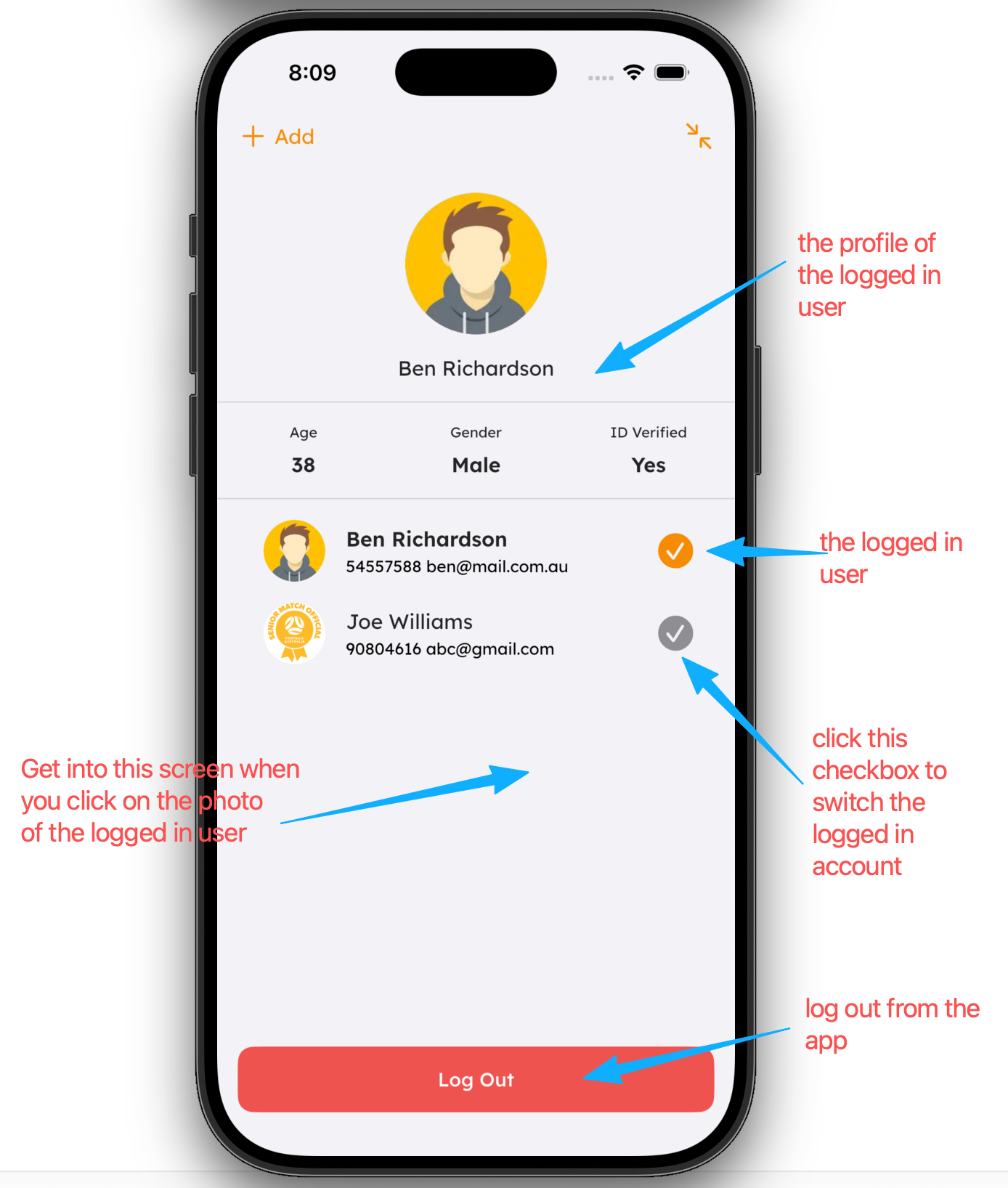
- Use the Accounts tab again to switch back to your own account or another approved linked account.
- Requesting, approving, or removing links is available on the website account linking page.